For most people and small businesses, password reuse is still the biggest everyday risk.
A password manager fixes that. It generates and stores long, unique passwords for every site and autofills them when you need them—so you don’t have to remember anything beyond one strong master password.
This guide shows why password managers matter, the simple way to set one up, and a few extra steps for small businesses.
Why reuse is dangerous
If you use the same password on more than one site, one leak can become many account takeovers. Attackers try exposed passwords across popular services (email, social networks, shopping, banking, and business tools). If they hit your email, they can often reset passwords to other accounts.
Goal: a unique password for every site—especially email, banking, and any accounts that hold customer or business data.
What a password manager actually does
A good password manager will:
- Create strong random passwords (16–24+ characters)
- Save them in an encrypted vault
- Autofill logins on your phone and computer
- Sync across devices
- Find weak or reused passwords
- Protect the vault with one strong master password (the only one you memorize)
Simple setup (works for anyone)
Step 1: Pick a reputable manager
Choose one that supports:
- Strong encryption
- Autofill on mobile + desktop
- Cross‑device syncing
- Two‑factor authentication (2FA) on the vault
Step 2: Create a strong master password (don’t skip this)
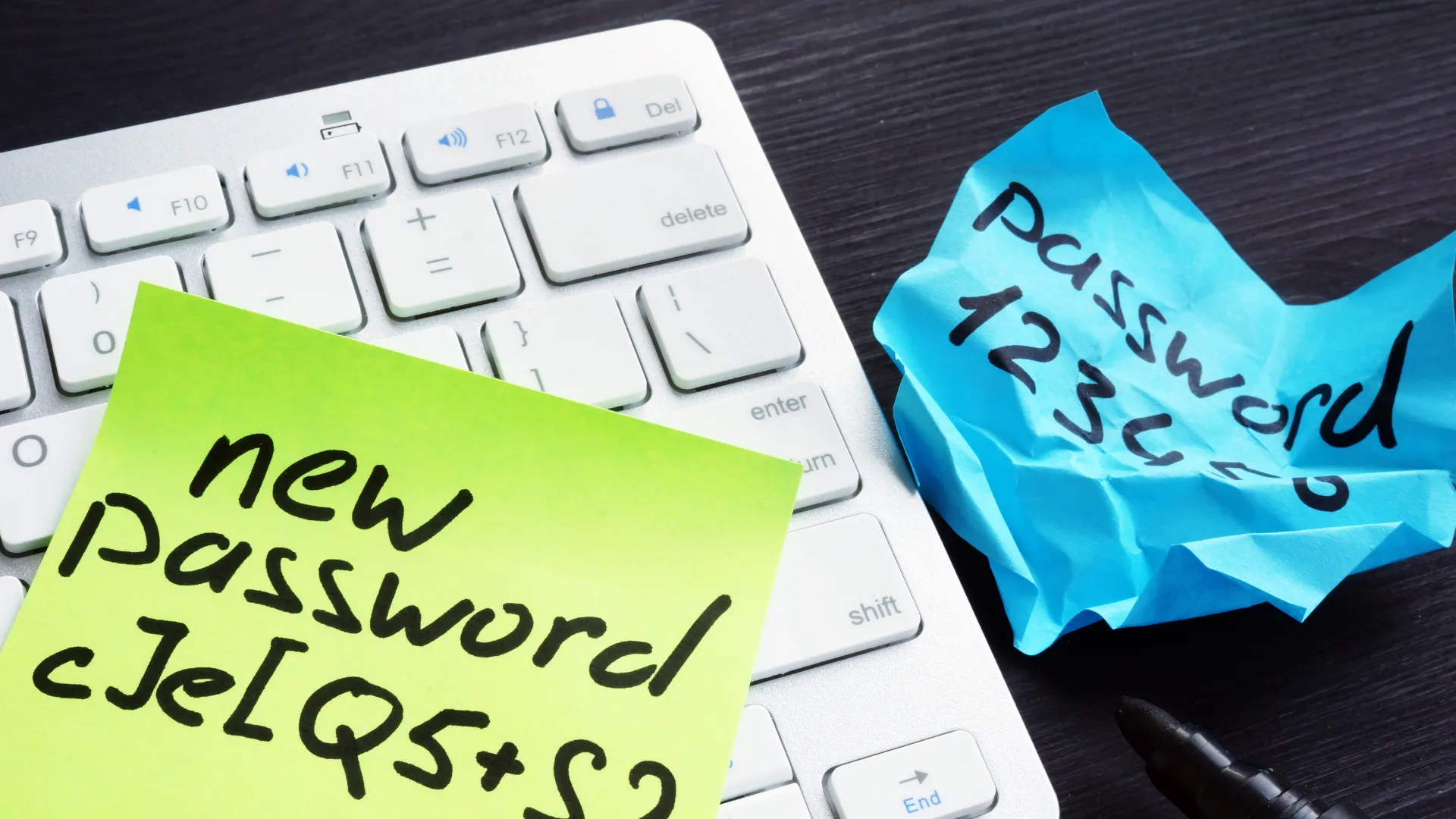
Use a long passphrase: 4–5 random words + a number/symbol.
It must be unique and not used anywhere else.
Step 3: Turn on 2FA for your vault
If someone guesses your master password, 2FA can still block access. Use an authenticator app rather than SMS where possible.
Step 4: Import what you already have
Most managers import saved passwords from your browser (Chrome/Edge/Safari). This makes transition painless.
Step 5: Fix the top accounts first (10–15 minutes)
Update the logins that matter most:
- Email (controls password resets)
- Banking / payment accounts
- Microsoft 365 / Google / Apple
- Any account that stores customer data
For each one:
- Generate a new password in the manager
- Save it
- Enable 2FA if available
Step 6: Enable autofill and use it daily
Once autofill is working, you stop typing passwords and stop reusing them.
Common mistakes to avoid
- Keeping everything in the browser only
Better than nothing, but not ideal for teams, sharing, or recovery. - Weak master password
“Password123!” defeats the point. Use a long passphrase. - No recovery plan
Save recovery codes safely; add a secondary device or recovery method. - Sharing passwords in chat apps
Use the manager’s secure sharing feature instead.
Small business tips
1) Avoid shared logins
Give people their own accounts where possible. Shared logins make offboarding hard and increase risk.
2) Use vault sharing for shared accounts (if you must)
If an account has to be shared (e.g., a vendor portal), use secure sharing in the manager instead of sending passwords over email or WhatsApp.
3) Offboarding matters
When someone leaves:
- Remove vault access
- Rotate shared passwords
- Review recovery email/phone and admin roles
4) Store recovery codes safely
Keep critical recovery codes in the vault, and document an admin recovery process.
Quick checklist
- Unique password for every site
- 2FA turned on for your password vault
- Email account has strongest protection
- Recovery codes saved securely
- Most important accounts updated first
Next step
Common questions about password managers
Q1: Are password managers safe?
Yes. Reputable managers encrypt your vault so only you can unlock it. Turn on 2FA for the vault and choose a strong master password.
Q2: What if I forget my master password?
Use the manager’s recovery options (if offered). Store recovery codes safely and add a secondary device or trusted recovery method.
Q3: Browser‑saved passwords vs a password manager—what’s the difference?
Browser storage is convenient, but dedicated managers handle sharing, recovery, auditing, and cross‑platform use better—especially for teams.
Q4: Should I use SMS codes or an authenticator app for the vault?
Use an authenticator app where possible. It’s generally more resistant to interception than SMS. (SMS is still better than no 2FA.)
Q5: Do businesses need a different setup?
Mainly policies: individual accounts instead of shared logins, secure vault sharing, documented offboarding, and recovery codes stored safely.