For most people and businesses in 2026, “security” still starts and ends with a password.
If that password is weak, reused across sites, or ever typed into a fake login page, it does not matter how strong your firewall is. An attacker who has your password can often log in as you in seconds – into email, Microsoft 365, banking, social media and cloud services.
Two-factor authentication (2FA) is one of the simplest ways to change that. This article explains what 2FA is, why it matters for both businesses and home users, and how to start using it in a practical way.
What is two-factor authentication?
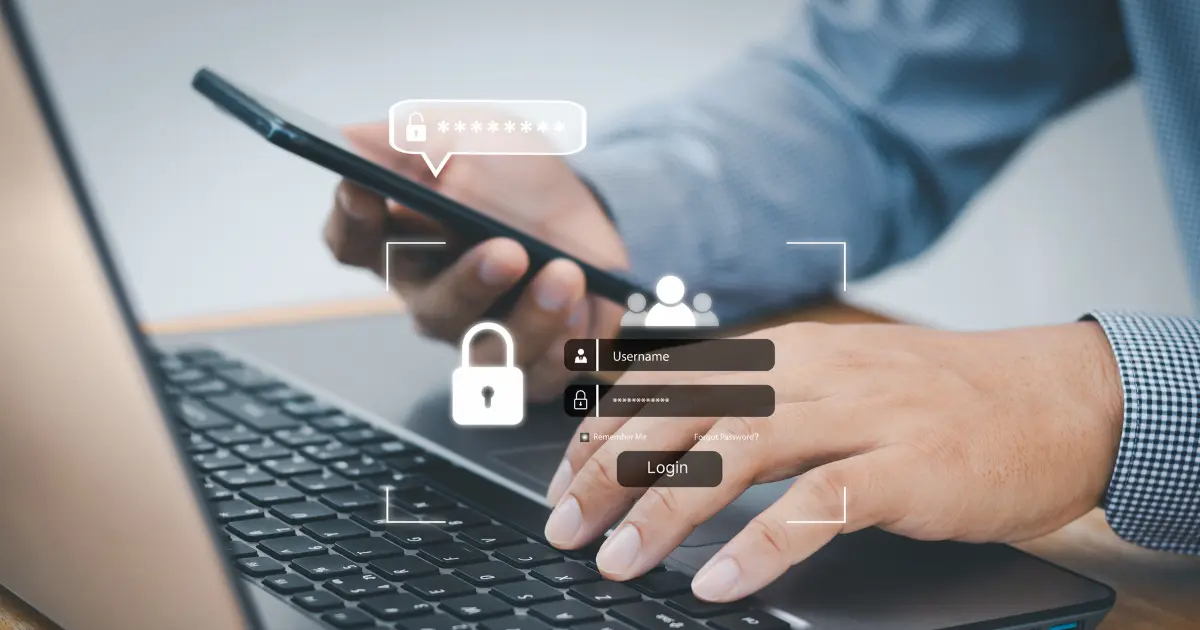
Two-factor authentication adds a second step when you log in.
First factor: something you know – your password
Second factor: something you have (a phone, app, hardware key) or something you are (fingerprint, face)
Even if someone gets your password, they still need that second factor to complete the login.
Different services call it different things – two-step verification, MFA (multi-factor authentication), login approval – but the idea is the same: one more check before access is granted.
Why passwords alone are risky
Relying only on passwords is risky in 2026 for a few reasons:
Password reuse – Many people use the same or similar passwords across email, social media, banking and work accounts. If one service is breached, attackers try those credentials everywhere else.
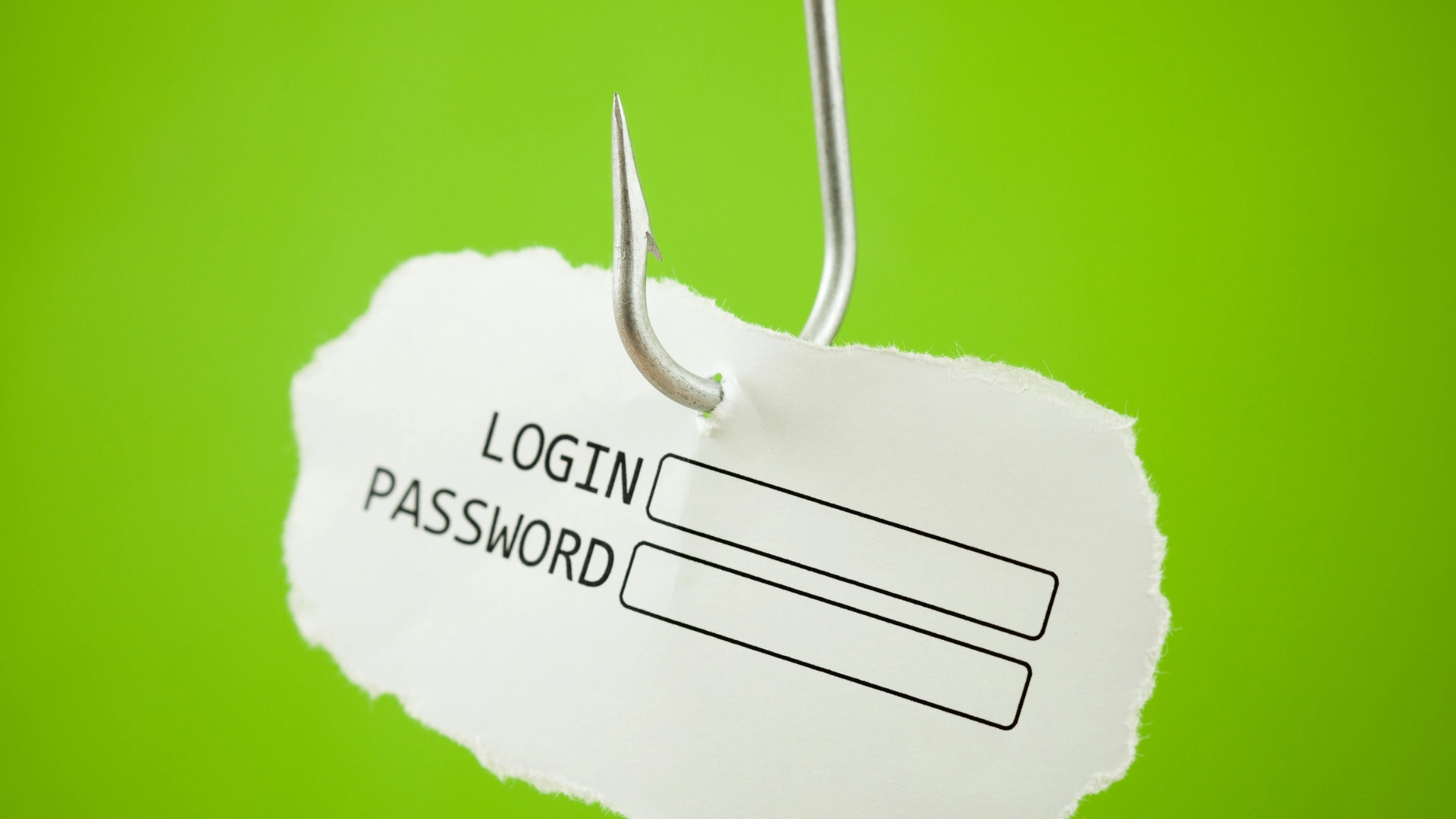
Phishing and fake login pages – Staff (and home users) are still being tricked into entering their credentials on pages that look legitimate but are controlled by attackers.
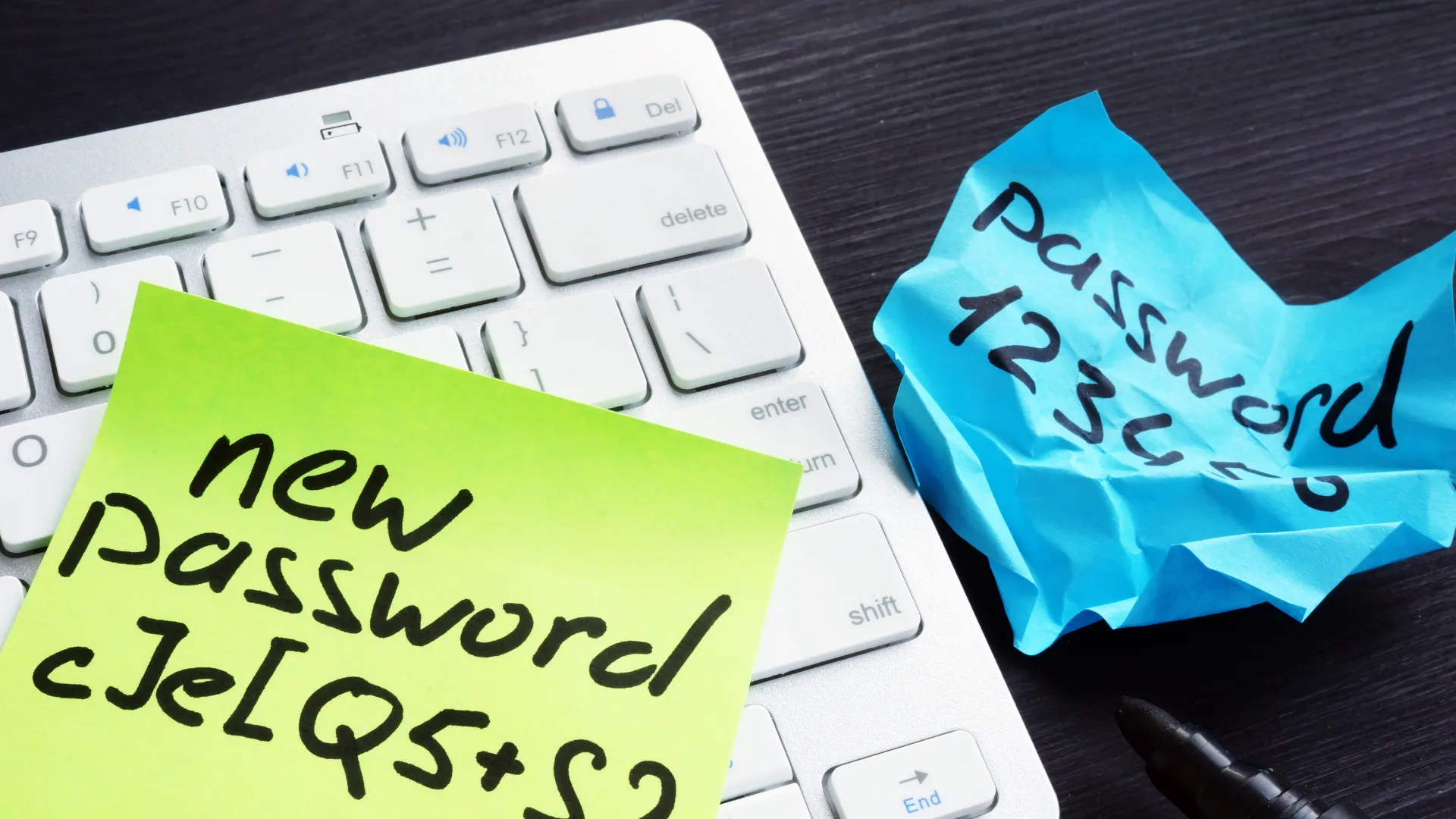
Simple or guessable passwords – Variations of a name, date of birth or “CompanyName123” are still very common.
Leaked credentials – Usernames and passwords from older breaches often remain valid for years, especially when people reuse them.
The impact of one compromised account is often underestimated. For example:
If an attacker gets into your email, they can reset passwords for many other services.
If they get into Microsoft 365 or Google Workspace, they have access to business documents, contacts, and internal communication.
If they get into social media, they can damage brand reputation quickly.
2FA does not solve every security problem, but it makes these types of attacks much harder.
Common types of 2FA (and what makes sense in practice)
You will see several types of 2FA in use. The main ones are:
1. SMS codes
You receive a numeric code by text message to enter after your password.
Pros: better than no 2FA, easy to understand.
Cons: messages can be delayed or intercepted; SIM-swap attacks exist.
If SMS is the only option a service gives, it is still a step up from password-only.
2. Authenticator apps (recommended default)
An authenticator app generates a time-based code on your phone (usually changing every 30 seconds). After entering your password, you also enter the current code from the app.
Pros: works offline, less exposed than SMS, widely supported.
Cons: you must keep backup codes or a recovery method in case you change or lose your phone.
For most small businesses and serious home users, an authenticator-style app is a very good default choice.
3. Push notifications
Instead of typing a code, a notification pops up on your phone:
“Are you trying to sign in from [location/device]?” with Approve / Deny.
Pros: very convenient, friendly for non-technical staff.
Cons: staff can get into the habit of tapping “Approve” without reading. User education is important.
4. Hardware security keys
A small physical key (often USB or NFC) that you plug in or tap to complete login.
Pros: very strong protection against phishing.
Cons: more cost and management overhead; best suited to high-risk roles, administrators and people managing very sensitive data.
Where to enable 2FA first
You do not need to enable 2FA on every single account immediately. Start with the accounts that matter most.
For businesses
Priorities usually look like this:
Email and productivity platforms
Microsoft 365 / Google Workspace / other email systems
This is often the highest priority.
Admin and IT accounts
Server logins, VPNs, routers, firewalls, domain and DNS management, cloud admin accounts.
Finance and operations
Online banking, accounting systems, payment gateways, POS systems that connect to online services.
Cloud storage and collaboration
OneDrive, SharePoint, Google Drive, Dropbox, project platforms.
Key third-party SaaS tools
CRM, ticketing, HR systems, line-of-business apps.
For home users
Focus first on:
Email accounts – because they control password resets.
Banking and payment apps.
Major social media accounts.
Any work accounts you use from home.
This is especially important when the same device is used for both work and personal use. (Ideally, this should be avoided to safeguard both parties)
Common questions about 2FA
When you bring up 2FA, the same questions and complaints usually come up.
“Isn’t this inconvenient?”
Yes, there is an extra step when signing in, especially on a new or untrusted device. The trade-off is much better protection against someone logging in with a stolen or guessed password. Once it is set up, most people get used to it quickly.
“What if I lose my phone?”
This is a valid concern. Good 2FA setups always include backup options: backup codes, a secondary device, or a recovery process through IT. Part of doing 2FA properly is deciding how people get back in safely if something goes wrong.
“My staff/relatives won’t bother with this.”
A short, practical explanation and clear instructions help a lot. Start with the most important accounts and the people who handle sensitive data, then roll it out to everyone else. It should be treated as part of normal business and home security, not an optional extra.
For home users, the main worry is usually recovery. When you turn on 2FA, it’s worth saving backup codes in a safe place or setting up a trusted recovery method from day one.
A simple 2FA rollout plan for small businesses
You do not need a complex project plan to start improving security. A practical sequence looks like this:
List your critical accounts.
Start with email, administrator accounts, finance systems and cloud storage.Turn on 2FA for owner/admin accounts first.
Ensure business owners and IT admins are protected before everyone else.Choose a standard method.
Decide whether you will primarily use an authenticator app, push notifications, or a mix. Try to keep it simple for users.Roll out in stages.
Phase 1: management, finance, IT.
Phase 2: remaining staff.
Provide basic guidance: how to install the app, how to log in, what to do if something goes wrong.
Document recovery procedures.
Define how staff should contact you if they lose access to their second factor. Avoid ad-hoc fixes.Review regularly.
At least once or twice a year, review who has access to what, and confirm 2FA is still in place on all priority systems.
Next steps
You don’t have to change everything at once to benefit from 2FA.
A simple place to start is this:
Turn on 2FA for your main email account.
Turn it on for banking, Microsoft 365 or Google Workspace, and any accounts that hold important business or personal data.
Make sure you have backup codes or a recovery method saved somewhere safe.
From there, you can extend 2FA to other accounts over time.
Password Managers
2FA protects logins, but password reuse is still a major risk. A password manager lets you use a unique password for every site without memorizing them.